Keywording in practice
How to keyword a single item or a whole album in the Asset Manager — step by step.
Overview
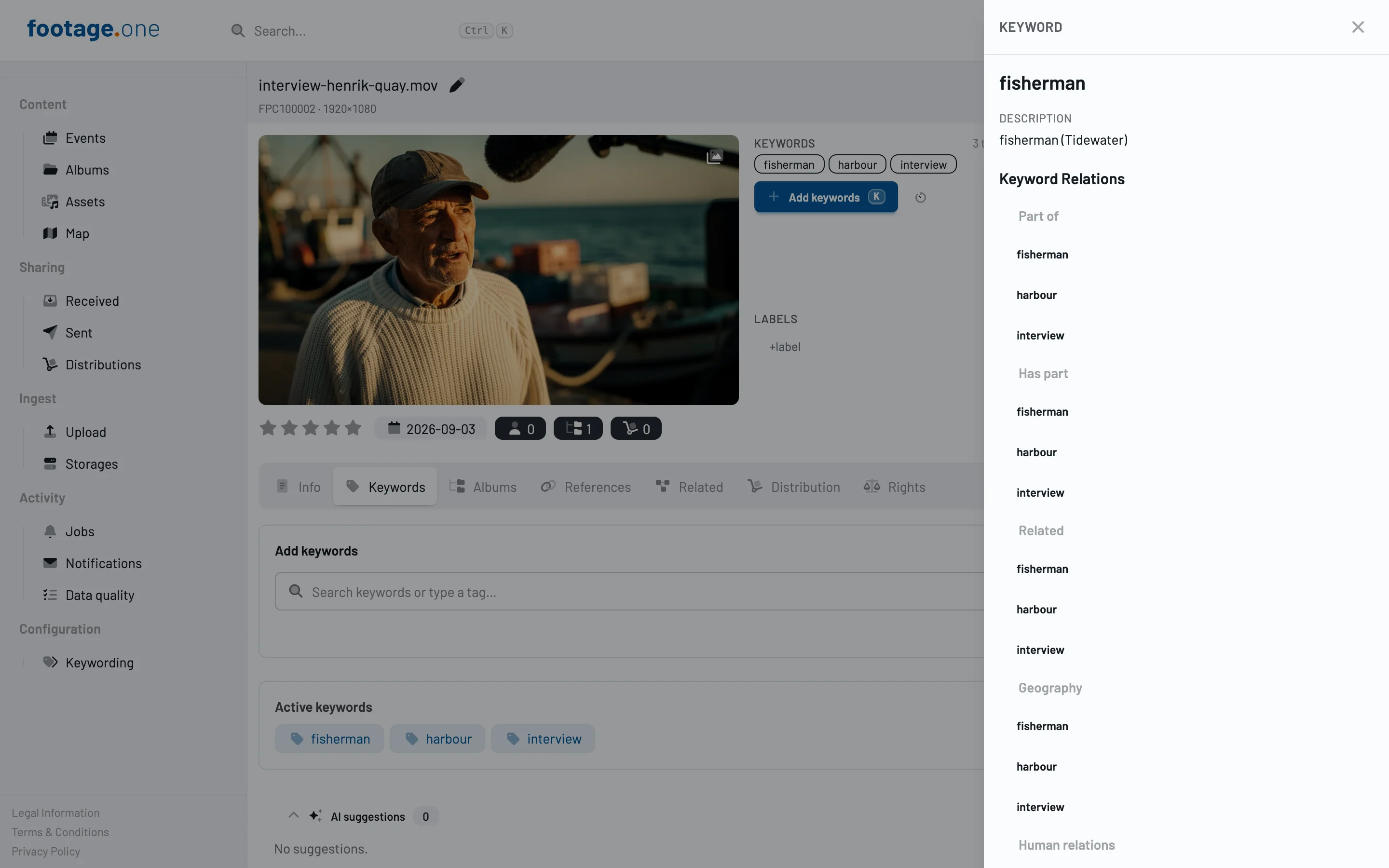
There are two places to add keywords, and the choice matters:
| Where | Built for |
|---|---|
| Detail view, Keywords tab | Looking at one item and adding a term or two along the way |
| Keywording view | Working through many items in a row |
Once you have more than a handful of items in front of you, switch to the keywording view: the search field stays visible there, and you move to the next item with a single click instead of opening each one.
A single item
- Open the item and switch to the Keywords tab.
- Start typing in the search field — suggestions appear from two characters onwards.
- Click a match. It is saved straight away, and the search stays put so you can take further matches from the same query.
Keeping the query is deliberate: after "Germany" you often want "federal state" from the same result list. To clear it, click the × in the search field or press Esc.
If nothing fits, "Add … as tag" sits right below the input. That records a free term — useful for project names or proper nouns outside the vocabulary. Keywords explains the difference between a keyword and a tag.
If the search returns several hits with exactly the same name (the norm for personal names), the description below the name is what decides. Telling identically named entries apart covers how to pick the right one, and what to do when none of them has a description.
Many items in a row
This is the mode that matters when a shoot or an import needs keywording.
Starting a run
Open an album or an event and click Keyword (tag icon) in the toolbar.
What is selected beforehand decides the scope:
- Nothing selected → the run covers every item in the album.
- Items selected → the run covers exactly those.
The button's tooltip tells you which it will be — "Keyword album" or "Keyword 12 items". To work on part of an album, select it first.
Working through the run
Your position shows at the top, for example 3 / 12. Move on with the arrow buttons or the → and ← keys directly. The arrow keys work anywhere, as long as the cursor is not in the search field.
Top left, the back arrow carries the album name and returns you to the overview; Esc does the same.
Entering at a specific item
You do not have to start at number one. Every tile in the media overview carries a tag icon — clicking it opens the keywording view at that exact item. Inside an album the run is preserved, so you can keep paging from there.
Using suggestions
Below the keywords already assigned sit several suggestion groups, each collapsible on its own:
- AI suggestions — from image analysis
- Technical keywords and Resolution — curated lists, for instance for shooting technique
- Related terms — derived from the relations of keywords already assigned
- From the assets (on albums and events) — what the contained items already carry
Whether a group is open or closed is remembered. Set the view up once the way you work.
AI suggestions are a subscription feature and not included in every plan.
Inherited keywords
An item shows not only its own keywords but also those of its album and event. Those are marked inherited and cannot be removed from the item — they belong to the album or the event.
In the detail view, the number of inherited terms sits next to the keyword preview. Clicking it switches to the Keywords tab and highlights the section holding them, split by where they come from.
In practice: keywords that apply to a whole shoot are better set once at event or album level than repeated on every item.
Keyboard shortcuts
| Key | Effect |
|---|---|
K |
Jumps into the search field on the Keywords tab |
L |
Opens the keywording view (currently videos only) |
→ / ← |
Next / previous item in a run |
Esc |
Clears the search; in a run, returns to the album |
Tips from daily use
- Set the selection before starting. A run across 400 items when 12 concern you is wasted time.
- Push shared terms up. What applies to every item belongs at album or event level.
- Leave the search standing. After a match the query stays — there is usually a second useful hit in the same list.
- Collapse the groups you never use. The state persists and shortens the path to the ones you actually work with.