Backup and archive
How footage.one distinguishes backup and archive storage, and how you create extra copies during import.
Overview
Every storage connected to footage.one has a role. The role decides what footage.one uses it for — as a source for imports, as a target for extra copies, or as the long-term home for master files.
The four storage roles
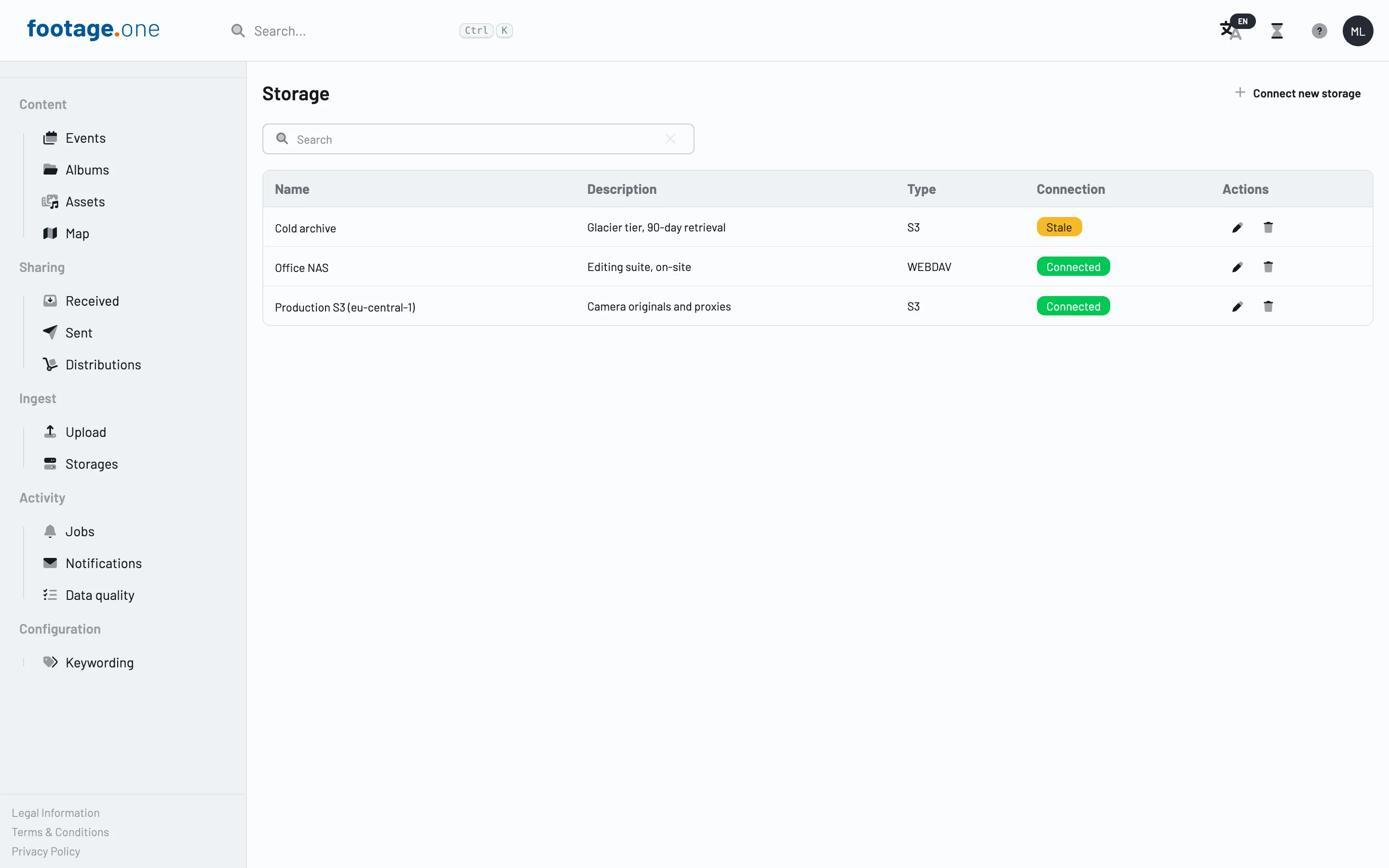
A storage's role is its usage type. You set it under Expert options → Usage type when you create or edit a storage:
| Usage type | Meaning |
|---|---|
STORAGE |
Source and target for imports (default) |
BACKUP |
Redundant second copy |
ARCHIVE |
Long-term home of the master file |
TEMPORARY |
Staging area |
Note: The field shows the values exactly as listed here —
STORAGE,BACKUP,ARCHIVE,TEMPORARYare not translated labels but fixed identifiers.
Backup or archive — what for what?
Backup is a second copy next to the original, in case the original is lost. Archive is the home of the master file for long-term preservation. You can combine both: an asset can have a backup copy and an archive copy at the same time.
Creating copies at import time
When you import assets from a connected storage, the Import assets dialog opens. Under Import Options you'll find two toggles:
- Create backup copy — stores an additional copy on the backup storage.
- Save to archive — places the imported media directly in the archive.
Both can be switched on or off for the current import. Remember for all future imports carries the current setting over as the new default for future imports.
Setting the defaults
You set the defaults for both options under Account → Preferences:
- Import to footage.one Storage — assets imported from a connected storage are copied to footage.one Storage.
- Copy imported media to backup storage — keep a redundant copy of every imported asset on the configured backup storage.
These defaults apply to every import, but can be overridden per import in the Import assets dialog.
What you should know
Note: Storages with usage type
ARCHIVEare only visible in the storage list to users with administration rights.
Note: The copy is created at import time. This is not an ongoing synchronization — files added to the source storage later are not automatically copied over.
Next steps
- Set up a NAS backup — a step-by-step guide to connecting your NAS via WebDAV to an S3 bucket as a backup target.
- Origin and master file — how to verify that a copy of your asset actually exists in the backup or archive.