Versions, variants and derivatives
Keep new cuts, language versions and stills together with their original, without ever losing the original file.
Overview
A file rarely stays the only one of its kind. After feedback there is a second cut, the social team needs a vertical version, and someone pulls a still from the interview. footage.one keeps these files together with their original, in three ways:
- Version: a newer revision of the same asset. Example: cut v2 of an interview after the client's feedback. The newest version is the current one; the original is always kept.
- Variant: the same content in another form. Examples: a language version labelled "DE", or a platform cut labelled "TikTok 9:16".
- Derivative: a new asset made from the original that stands on its own. Example: a still taken from a video.
To link assets that already exist in footage.one, see Asset relations.
Upload a version, variant or derivative
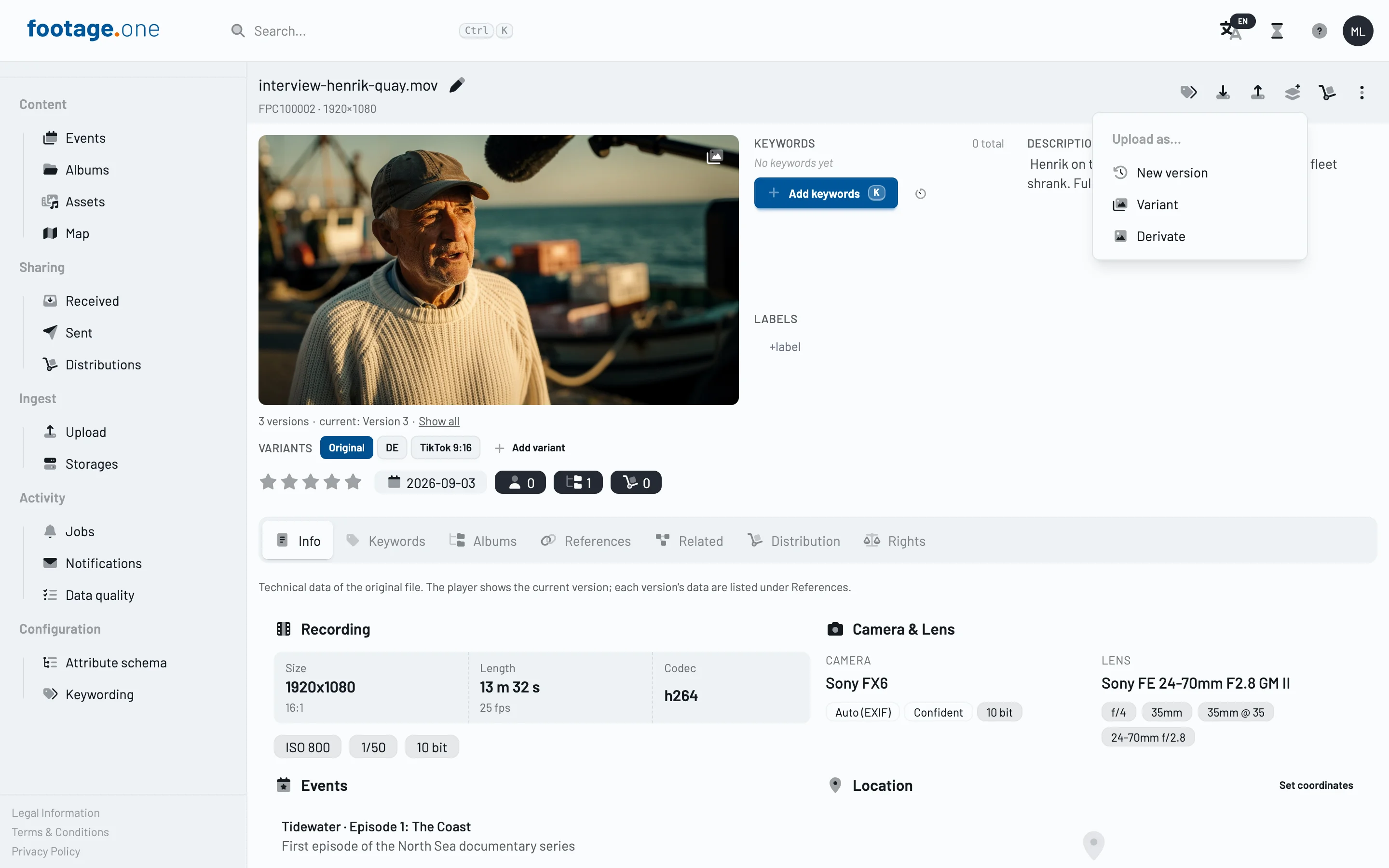
- Open the original in the detail view.
- In the toolbar, open Upload as… and choose New version, Variant or Derivate.
- Pick the file. For a variant you can add a label, for example "DE" or "TikTok 9:16". It is shown on the variant's button below the player.
- Click Upload. The file goes through the regular upload queue; once processing is done, the new asset appears with the original.
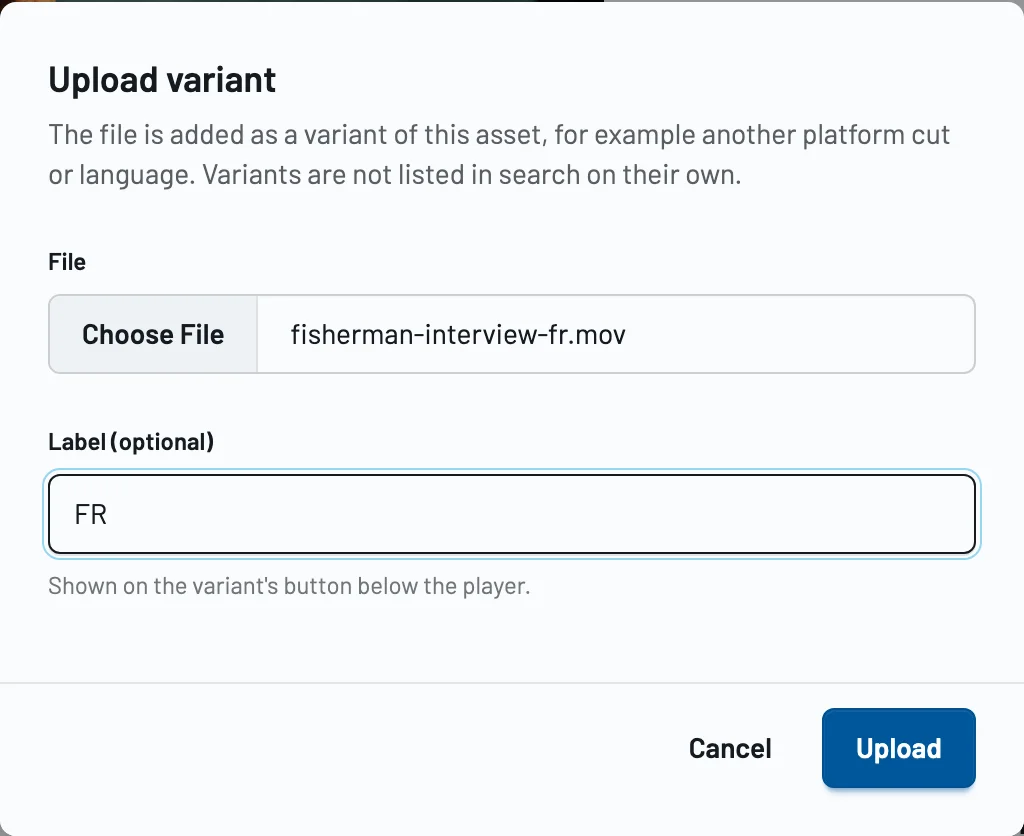
Name of the new asset
footage.one names the new asset after the original:
- With a label:
<Original> – <Label>, e.g.Harbour interview – DE - Without a label:
<Original> (Version N),<Original> (Variant)or<Original> (Derivative)
The original counts as version 1, so the first uploaded version is called "(Version 2)". You can rename the asset at any time.
What the new asset takes over
- Taken over from the original: description, keywords (free words included), license and credit. The new asset is placed in the original's event (the oldest one, if the original is in several) and in the same team.
- Not taken over: albums, rights assignments and persons. Persons are detected again in the new file.
- From the new file: technical data such as resolution, duration and codec.
Versions
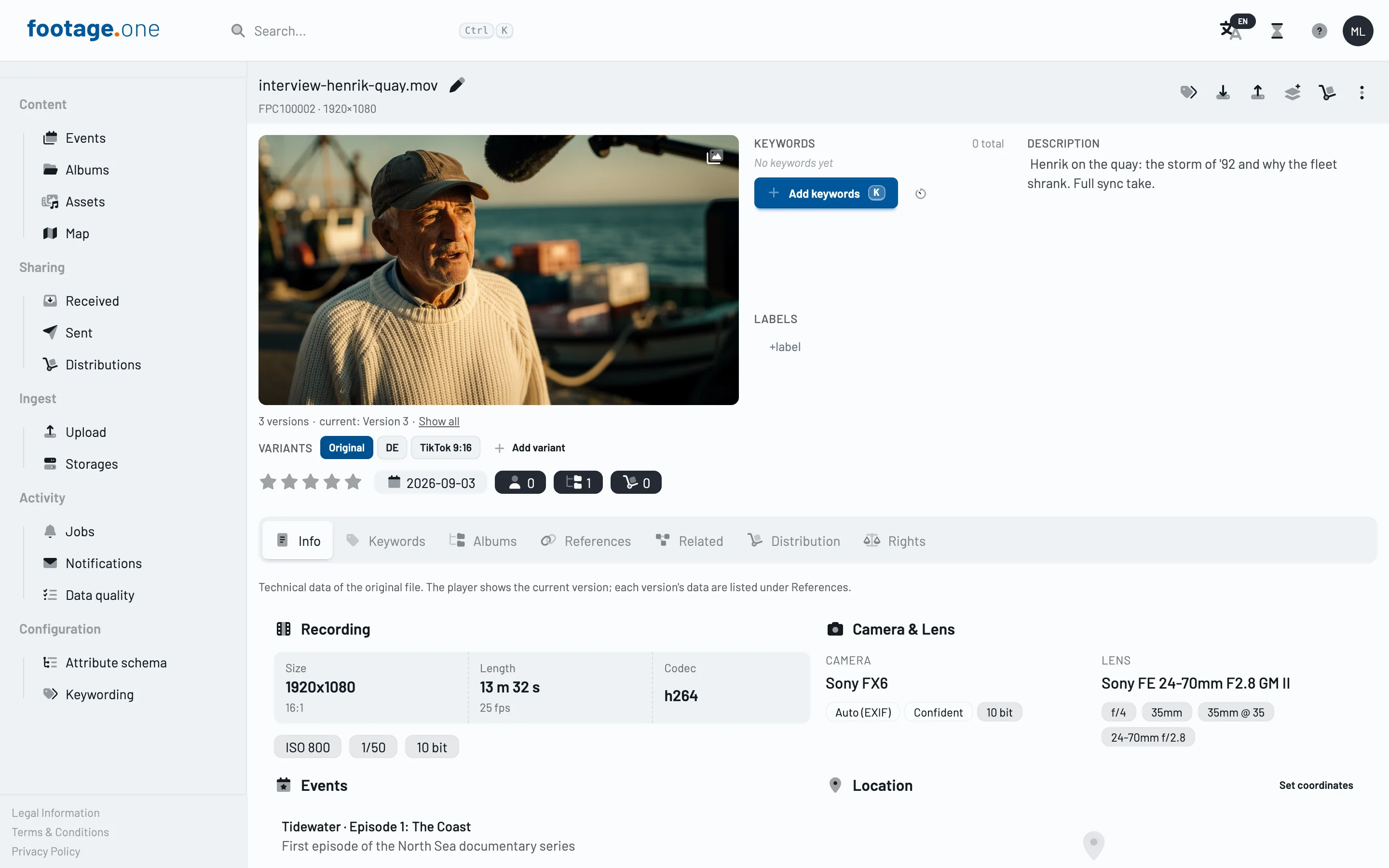
The current version is always the newest one. On the original's detail page, the player shows the current version, and a line below it sums up the stack, for example "3 versions · current: Version 3 · Show all".
Show all opens the References tab. Its Versions section lists the original and every version with its own technical data (resolution, duration, codec, file size); the current one is marked.
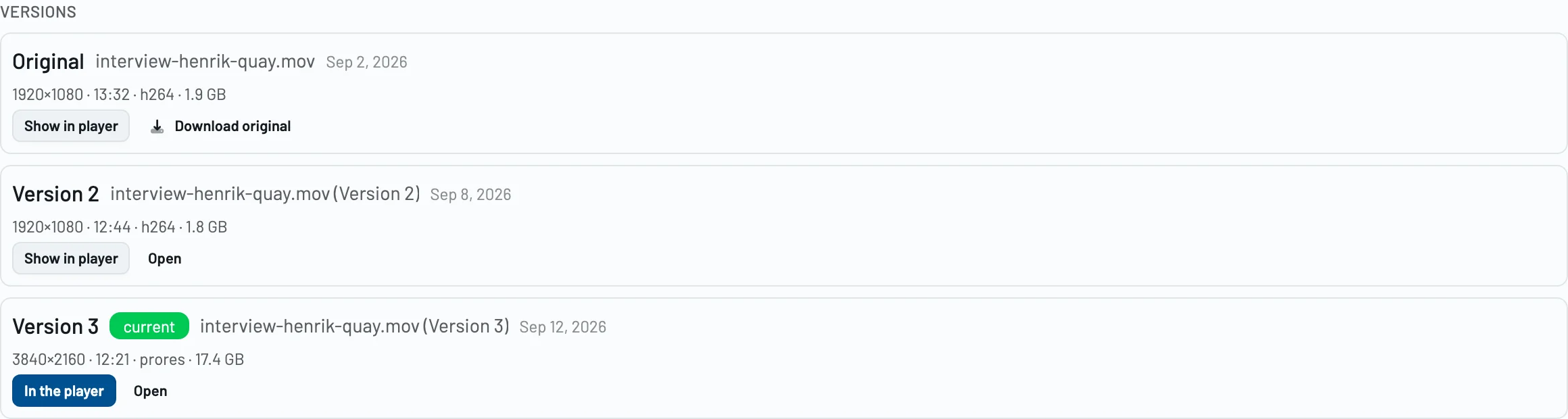
- Show in player shows an older version, or the original file, in the player. A note below the player says which file you are looking at.
- Download original downloads the original file.
- Open opens a version's own detail page.
The Info tab of the original keeps showing the original file's technical data and says so.
Replace and new versions
As long as an asset has no versions, Replace swaps its file as before. Once it has versions, and on a version's own page, Upload new version takes the place of Replace: the original is always kept and never overwritten.
What shares, downloads and distributions deliver
The preview, downloads, the master download, shares and ZIP downloads deliver the current version automatically. Additional formats (renditions) requested for the original still refer to the original file.
Distributions deliver the current version the next time you publish; they are not updated automatically. Distributions to S3 store every version as a separate file, so older files are never overwritten.
Variants
Variants are assets of their own. Below the player of the original, the Variants strip lists the original and its variants; a click opens the variant's own detail page, where the same strip shows the whole group. Add variant links an asset that already exists in footage.one as a variant.
Search
Versions and variants do not show up as separate hits in the search or the quick search, so a result list shows each asset once. In albums, events and shares they stay visible as they were added.
Through the REST API, the search includes them with includeDependent=true. See REST API quickstart.
Frequently asked questions
The upload was refused because the file already exists. footage.one checks every upload for a duplicate file. If the file is already in your library, it is not uploaded again; the message links to the existing asset. You can link that asset with Asset relations instead.
What happens when I delete the original? Its versions and variants become independent assets again and show up in the search; if you restore the original, they are hidden from the search again. Derivatives go to the trash together with the original and are not restored with it automatically.
Can I make an older version the current one again? Not yet; this is planned. Until then, the newest version is always the current one. You can still show every version in the player and download it from its own detail page.